Hey there, WordPress enthusiasts and digital pioneers! In 2023, the world of websites and online communication has taken a massive leap forward, and ChatGPT is here to join the party. If you’re scratching your head, wondering what ChatGPT is and how it can turbocharge your WordPress site, you’re in the right place. This article is your roadmap to mastering ChatGPT for WordPress, and we promise it won’t be as tricky as deciphering alien hieroglyphics!
What’s ChatGPT, Anyway?
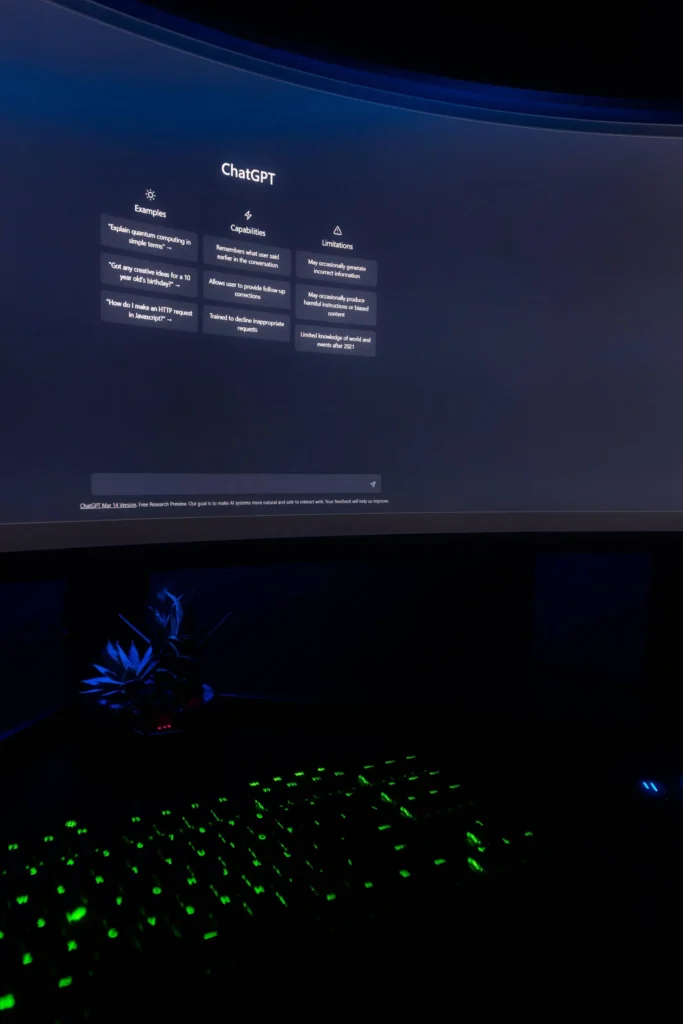
ChatGPT is like having a friendly and super-smart chatbot that can help your website visitors get the information they need and even engage in a bit of small talk. It’s like having a digital assistant, but without the coffee breaks! So, whether you run a blog, an online store, or a portfolio website, ChatGPT can be your 24/7 sidekick to keep your visitors happy and informed.

Getting Started with ChatGPT on WordPress
So, you’ve heard about this ChatGPT thing and how it can be a game-changer for your WordPress site. Don’t worry, it’s not rocket science! We’re here to break it down into easy-peasy steps, without all the tech jargon.
A. Installing the ChatGPT Plugin
- Log into Your WordPress Account: Imagine your WordPress account as the control center for your website. Log in by typing in your username and password. Easy, right?
- Head to the Plugins Section: Think of plugins as cool add-ons for your website. On the left side of your dashboard, you’ll see “Plugins.” Click on it like you’re opening a treasure chest.
- Find the ChatGPT Plugin: Imagine this as a treasure hunt, but the treasure is a chatbot! In the search bar, type “Chatbot ChatGPT” and hit enter. You’ll see the magic plugin.
- Install the Plugin: Once you’ve found it, there’s a button that says “Install Now.” Click on it like you’re adding chocolate chips to your cookie dough.
B. Activating the Plugin
- Activate the plugin: After you’ve installed the ChatGPT plugin, you’ll notice an “Activate” button. Click it like you’re turning on the lights in a room.
- Visit the Settings Page: Now, let’s head to the settings page. Click “Settings,” and then “API/Model.” It’s like finding the secret passage in a video game.
- Get the API Key from OpenAI: API key? Don’t worry; it’s not a super-secret password. To get one, you’ll need to go to the OpenAI website.
- Create Your OpenAI Account: If you haven’t already, create an account on the OpenAI website. It’s like signing up for a newsletter, but way more exciting.
- Generate an API Key: Once you’re in, look for the “API Keys” section. It’s where the magic happens. Click to generate a new API key, and OpenAI will hand it to you on a virtual silver platter.
- Copy and Paste: Grab that shiny new API key, copy it (Ctrl+C), and head back to your ChatGPT plugin settings. Then, paste it (Ctrl+V) into the “API Key” field.
By following these steps, you’ve just brought ChatGPT to life on your WordPress website! It’s like having a friendly digital sidekick that’s ready to chat with your visitors and make your website even cooler. Now, you’re all set to rock the ChatGPT world and give your site that extra bit of magic. Happy chatting!
Customizing ChatGPT:
Alright, so you’ve got this nifty ChatGPT chatbot for your WordPress site. But guess what? You can make it as unique as your favorite pair of socks! Let’s dive into the world of customization, and don’t worry, we won’t get too techy.
A. Why Customization Matters
Picture this: your website is like your favorite comfy chair, and ChatGPT is the throw pillow. Customizing ChatGPT is like picking the perfect pillow cover that matches your style. It’s crucial because it lets you tailor the chatbot to your website’s needs and your visitor’s preferences.
Customizing ChatGPT can:
- Make your visitors feel like they’re having a chat with a friendly neighbor.
- Boost visitor satisfaction.
- Spice up engagement.
- Increase conversion rates (that’s a fancy way of saying more people buying or signing up).
B. Choosing a Name and Avatar
Remember those buddy cop movies where the characters have cool names? Well, you get to pick a name for your chatbot! Choose one that suits your website’s personality. Maybe it’s “Helpful Helen” or “Smarty Steve.” Be creative!
Now, about avatars – think of them as your chatbot’s wardrobe. You want it to dress to impress! Pick an avatar that matches your website’s look and feel. It’s like dressing up your chatbot for a fancy dinner party, but without the fancy clothes.
C. Where to Put ChatGPT?
Alright, now comes the real estate part. Where should ChatGPT hang out on your website? This decision can make or break the visitor’s experience. Think of it like choosing a seat in a movie theater. Do you want to sit up front or in the back?
- Prominent Placement: If you want ChatGPT to be the star of the show, put it front and center. Think bottom right corner of the screen. It’s like putting the spotlight on your chatbot.
- Subtle Placement: If you’d rather have ChatGPT as a supporting character, you can go for a less obtrusive spot, like a floating button. It’s like your chatbot is the friendly neighbor next door, there when needed but not in your face.
Also, you can customize the chatbot’s welcome message and responses. Make them feel like they’re chatting with a real human! It’s like writing a friendly note to your guests.
In a nutshell, customizing ChatGPT is like giving your website’s chatbot its own unique personality and style. By choosing a name, avatar, and the perfect spot for it, you’re making your visitors feel more at home. And guess what? Happy visitors often mean more success for your website!

Teaching ChatGPT
So, you’ve got this AI buddy called ChatGPT. It’s pretty smart, but it needs a bit of training to be super useful. Imagine you’re teaching a dog to fetch a ball – it needs to learn the ropes, right? Well, ChatGPT is kind of like that, but without the slobbery tennis balls.
A. Why Training ChatGPT is a Must
First things first, why do we need to teach ChatGPT? Well, it’s like having a conversation with a toddler who’s just learning to talk. You need to show it the ropes so it can give you the right answers. ChatGPT learns from the stuff it’s fed, so the better the info, the better the chat.
B. Feeding it the Good Stuff
To train ChatGPT, you’ve got to give it some key info about your website. Think of it as introducing your AI buddy to your world. You tell it about your products or services, your target audience (the people you want to talk to), and what kind of questions folks usually ask. It’s like giving your new friend the lowdown on your life. Plus, you can tell it when it’s goofed up, so it can do better next time. And hey, you can even make it sound more like you, so it fits right in.
C. Easy-Peasy Training
Here’s the cool part – training ChatGPT is a breeze, even if you’re not a tech whiz. Imagine you’re showing a friend how to bake cookies from a ready-made mix – it’s that simple. There are tools built into ChatGPT to help you feed it the right info and let you know when it’s nailing it or not. If you want to get fancy, you can use other tools like Google’s Dialogflow, but you don’t have to. Just remember, training is an ongoing thing, like watering your plants. You’ve got to keep at it to make ChatGPT the smartest buddy on the block.
In a Nutshell
So, here’s the deal – training ChatGPT is like giving it a crash course in being your go-to chat buddy on your WordPress website. It’s as easy as showing your friend how to bake cookies from a mix, and anyone can do it. By following these tips, you’ll have ChatGPT chatting like a pro in no time. Now, go make your AI buddy the cleverest one in town!
Making the Most of ChatGPT
A. Making ChatGPT Your Website’s Super Sidekick
Imagine ChatGPT as your trusty sidekick for your WordPress website. It’s like having a friendly assistant on hand 24/7! But, here’s the thing – you want folks to actually use it, right? So, put it where everyone can see it, and give them clear instructions on how to chat with it. You know, like making sure they know how to dial your superhero hotline!
B. The Superhero Tasks ChatGPT Can Tackle
Now, ChatGPT isn’t just your average sidekick; it’s a superhero of sorts. It can handle all sorts of questions and tasks, like:
- Spilling the beans on your products or services
- Tackling those questions everyone asks a million times
- Helping folks find their way around your website
- Giving a hand with techie troubles
- Being the friendly voice for customer service
- Even playing matchmaker by suggesting things based on what people like
That’s a pretty cool sidekick, right?
C. Supercharging the User Experience
Here’s the secret sauce: ChatGPT makes your website experience way better. By giving folks answers that are just right for them, it’s like having a personal shopping assistant in your favorite store. Happy customers mean more folks sticking around and doing business with you. Plus, ChatGPT works around the clock, so no one’s waiting for help.

ChatGPT’s Checkup: Keeping It Sharp and Snappy
A. Why We Keep an Eye on ChatGPT’s Chats
Alright, so imagine ChatGPT is like your chat buddy, always ready to help out on your WordPress website. Now, you wouldn’t want your buddy giving out wrong info, right? That’s where the checkup comes in. We keep an eye on ChatGPT’s chats to make sure it’s on point, like making sure your buddy isn’t telling tall tales.
B. The Fixer-Upper: Tweaking ChatGPT’s Answers
Now, even the best buddies mess up sometimes. So, when ChatGPT slips up, we don’t get mad; we help it get better. We go through its chat history, find the slip-ups, and give it some friendly advice. Think of it like telling your buddy they’ve got spinach in their teeth – you’re helping them look their best! Plus, we can teach ChatGPT to talk like you, so it fits right in.
C. How You Can Be the ChatGPT Whisperer
Guess what? You’re not just a chat user; you’re part of the superhero team! By telling us when ChatGPT goofs up or asking it clear questions, you’re like the coach of the chat world, making it even better. Remember, ChatGPT is like a friendly but eager puppy – it wants to learn from you.
To Wrap It Up
So, keeping an eye on ChatGPT’s conversations, helping it get smarter, and being a chat superstar – it’s all part of the game when you use ChatGPT on your WordPress website. Stick to these tips, and you’ll have ChatGPT answering questions like a pro, making your website visitors happy, and being the superhero sidekick you always wanted!
Conclusion
So, mastering WordPress can be a bit like taming a wild beast – challenging but totally worth it! ChatGPT is here to lend a hand, making learning a breeze. Just remember, it’s not the only tool in your toolkit. Combine it with official guides and trustworthy sources, follow the tips in this article, and you’ll be a WordPress whiz in 2023 and beyond!
FAQ: ChatGPT and WordPress
Q1.What’s ChatGPT, Anyway?
ChatGPT is like that clever friend who knows a bit about everything. It’s a smart computer thingy that can answer questions and help you out with stuff, even WordPress!
Q2.Is ChatGPT a substitute for learning WordPress?
Not quite! ChatGPT is handy, but it’s no substitute for really knowing your way around WordPress. Think of it as your helpful sidekick, not the whole superhero team. You’ll still want to check out the official WordPress guides and trustworthy sources to get the full scoop.
Q3.Can ChatGPT provide code snippets for WordPress?
Absolutely! ChatGPT can give you bits of code for WordPress, but here’s the catch – it might not always be spot-on or super fresh. Double-check the code with the official WordPress guides and reliable sources to be sure.
Read more How to Effectively Protect a Website From Hackers in 2023…







Leave a Comment